The Apple Watch is widely used for tracking your activity, but many of its fitness-related features remain untouched.
Beyond the familiar activity rings and workout start button, the watch includes options that make training more flexible, recovery easier to manage, and data more useful. The following fitness-focused tips cover settings, built-in tools, and third-party apps that can help users get more out of workouts and health tracking.
We already made an article about 10 practical Apple Watch tweaks that improve daily use, but since many Watch users use it for fitness, we decided to make an article specifically for this topic.
1. Give Your Apple Watch Rings a Rest Day
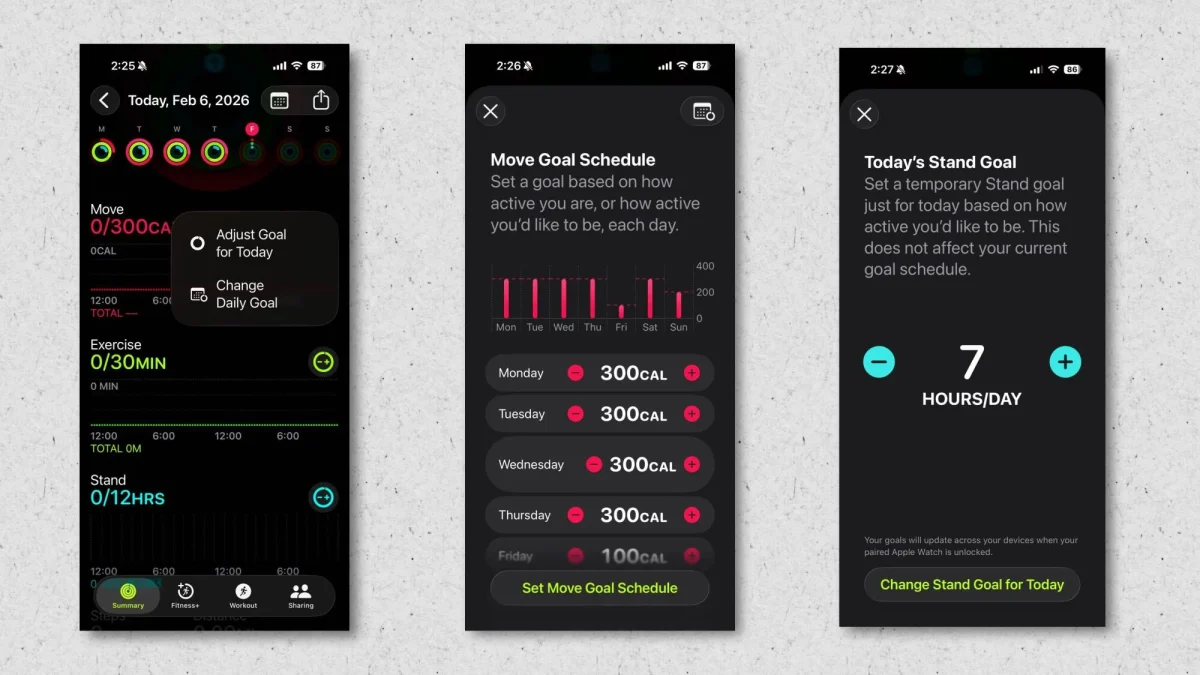
The Fitness app tracks daily activity using three rings: Move, Exercise, and Stand. While many users adjust their goals, fewer realize that goals can now vary by day. Apple Watch allows users to schedule different ring targets throughout the week, including lower goals on rest days. Goals can also be adjusted temporarily for a single day, such as during travel. These options are available from the Fitness app by opening the Activity Rings view and using the goal controls.
2. Wear the Apple Watch Somewhere Other Than Your Wrist
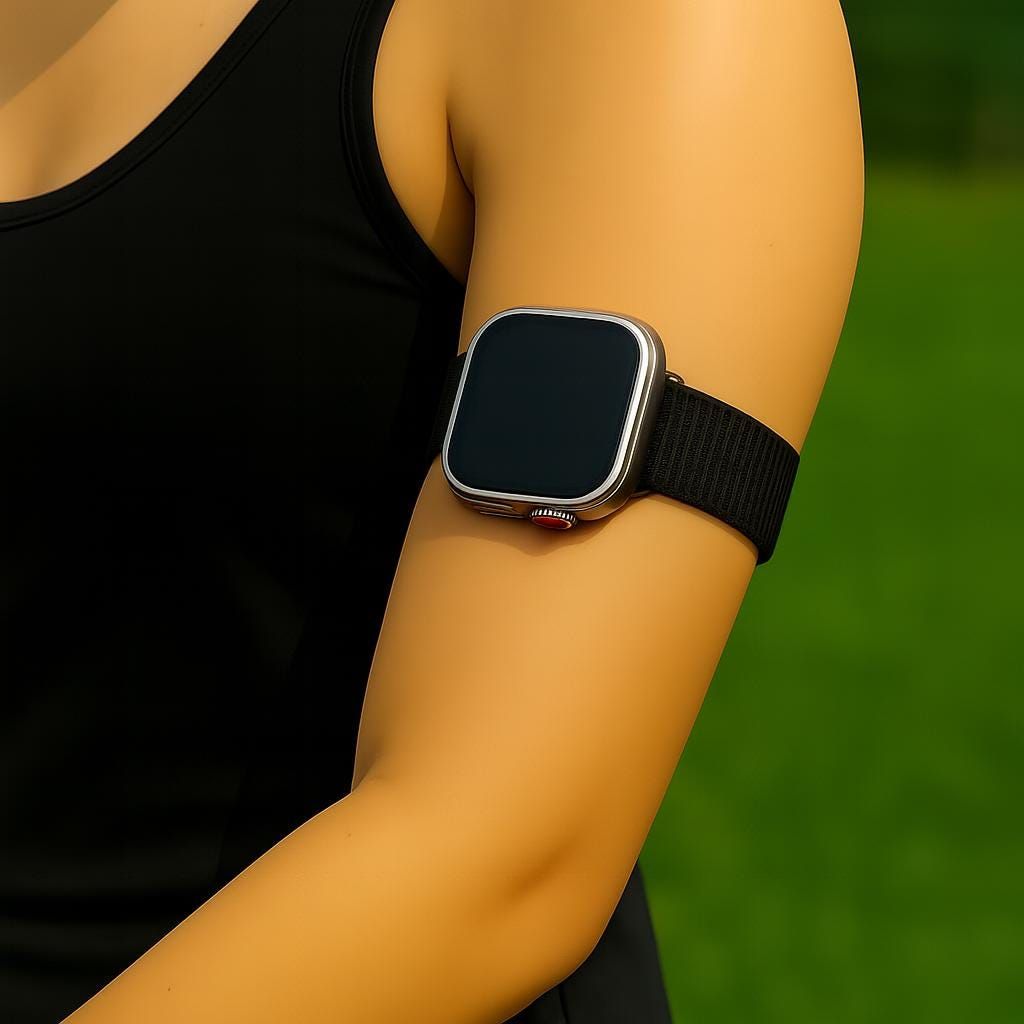
Although designed for wrist use, the Apple Watch can still track movement when worn elsewhere. Some workouts make wrist placement impractical, such as weightlifting with wrist wraps or kettlebell training. In those cases, wearing the watch on the upper arm or ankle can improve comfort and step detection. This may require a longer strap, but tracking accuracy generally remains intact.
3. Switch to List View for Easier App Access During Workouts
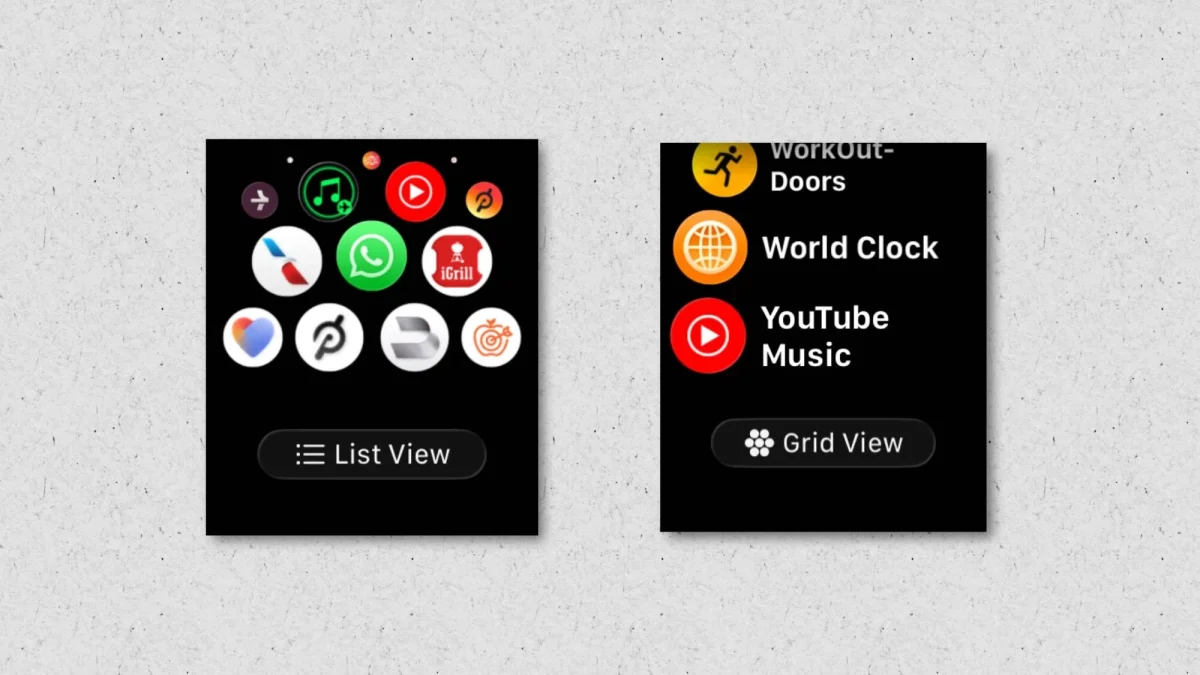
By default, the Apple Watch shows apps in a clustered grid, which can be difficult to tap while moving. Switching to List View places apps in an alphabetical list with labels, making them easier to access mid-workout. The option appears at the bottom of the app launcher after pressing the Digital Crown.
4. Create Custom Interval Workouts
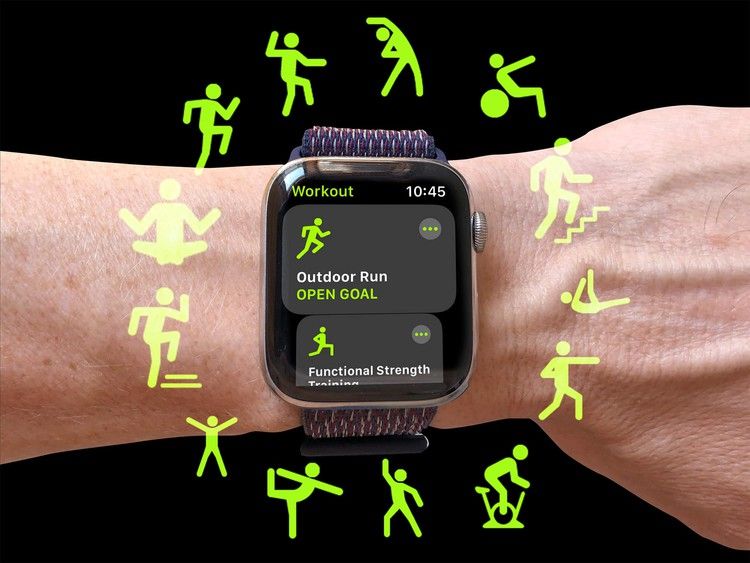
The Workout app supports custom workouts with structured intervals. Each workout type includes a configuration option that allows users to define timed intervals, rest periods, or fixed-length sessions. While setup can be done directly on the watch, configuring workouts from the iPhone is usually faster and easier.
5. Race Yourself on Familiar Routes
For runners and cyclists who repeat the same routes, Apple Watch can generate race comparisons. After completing a route multiple times, users can choose to race against their previous or best performance. During the workout, the watch shows whether the current pace is ahead of or behind the comparison effort.
6. Track a Workout Without Wearing the Apple Watch
Recent versions of iOS allow workouts to be recorded directly from the iPhone, even if the Apple Watch is not worn. Outdoor activities can use the phone’s GPS, while indoor workouts are tracked by time. If an external heart-rate sensor is paired with the phone, heart-rate data can still be included. These workouts count toward training metrics, even without the watch present.
7. Connect the Apple Watch to a Treadmill
Indoor running accuracy improves when the Apple Watch connects directly to compatible gym equipment. Many commercial treadmills support GymKit, which syncs speed and distance data with the watch. The feature must be enabled in the watch’s Workout settings. When supported equipment is detected, the watch pairs by tapping it against the machine’s reader.
8. Charge the Apple Watch Briefly Before Sleep
Sleep tracking requires the watch to remain worn overnight, but newer models charge quickly enough that short charging sessions are often sufficient. A few minutes on the charger before bed can provide enough power for overnight tracking, making it easier to maintain consistent sleep data without changing daily routines.
9. Start an “Other” Workout for Activities Apple Misses
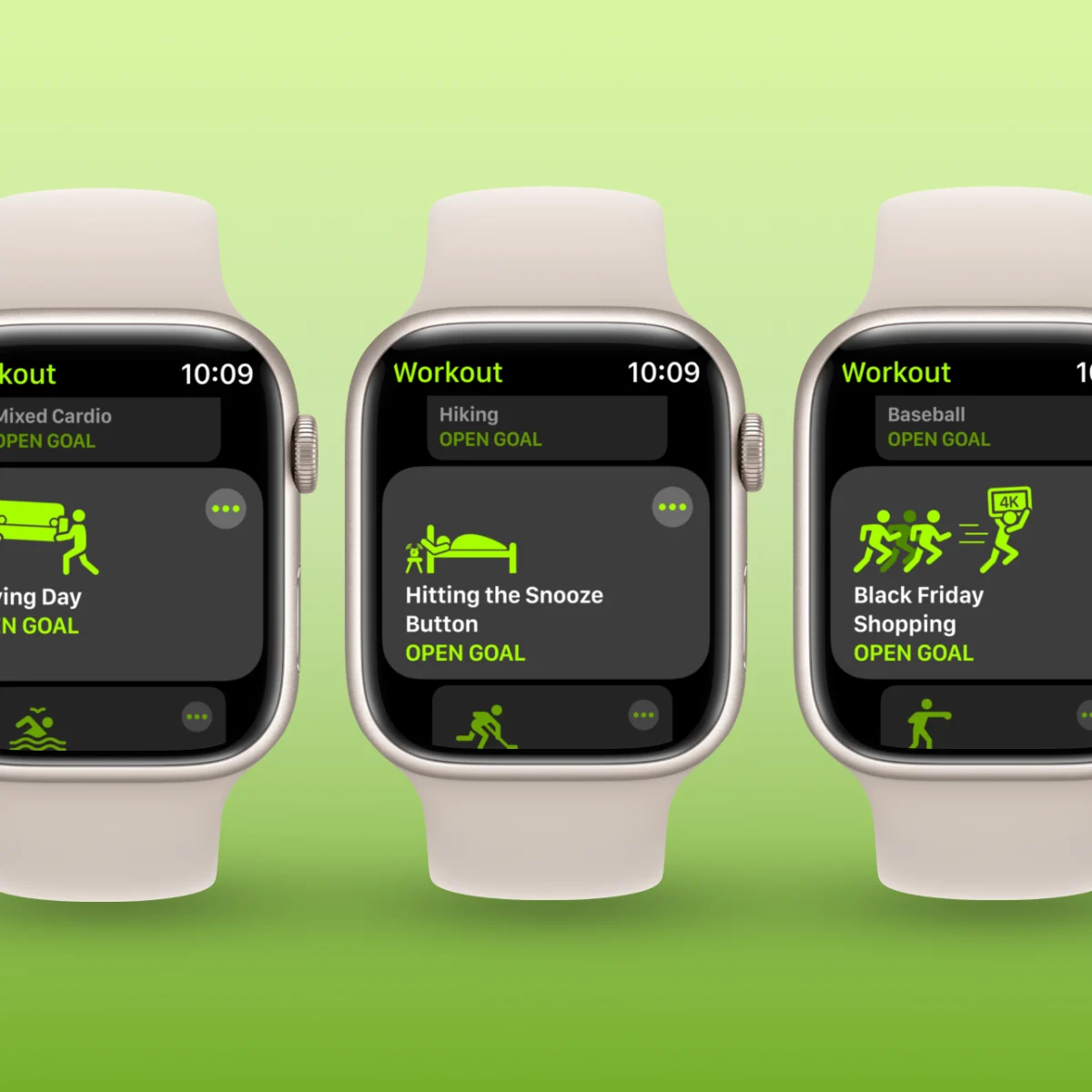
Not all physical activity fits Apple’s predefined workout types. Yard work, heavy lifting, farm labor, or snow shoveling can be physically demanding while barely moving the Exercise ring.
When an activity raises your heart rate but involves irregular movement, start an “Other” workout in the Workout app. This forces continuous heart-rate tracking and logs the time as active exercise instead of relying on motion estimates.
It’s not cheating the system—it simply tells the watch to pay attention. For days that feel exhausting but barely register, this is one of the most effective fixes.
10. Favorite Key Health Metrics to Reduce Data Overload
The Health app tracks more data than most people can realistically interpret. Instead of monitoring everything, focus on a small set of metrics that reflect real health trends.
Use Favorites in the Health app to highlight essentials like resting heart rate, heart rate variability (HRV), sleep duration, cardio fitness (VO? max), weight, or body fat percentage if you use a smart scale.
Favorited metrics appear on the main Summary screen, turning Health into a quick, readable dashboard instead of a cluttered data archive.